Admin Guide · Setup
Custom lists
A custom list is the tenant's shared vocabulary: the values everyone reports on, kept in one place instead of retyped in five. Scroll through what a value is made of and what changing one costs.
- Categories
- Values
- Retire
Scroll
Custom Lists is reached at /admin/custom-lists. It is not one of the cards on
the Administration page, so bookmark it. It holds the value sets your tenant
reuses, such as a control frequency scale or a review status, so the same
vocabulary is available wherever it is needed rather than being retyped per field.
One tab per category
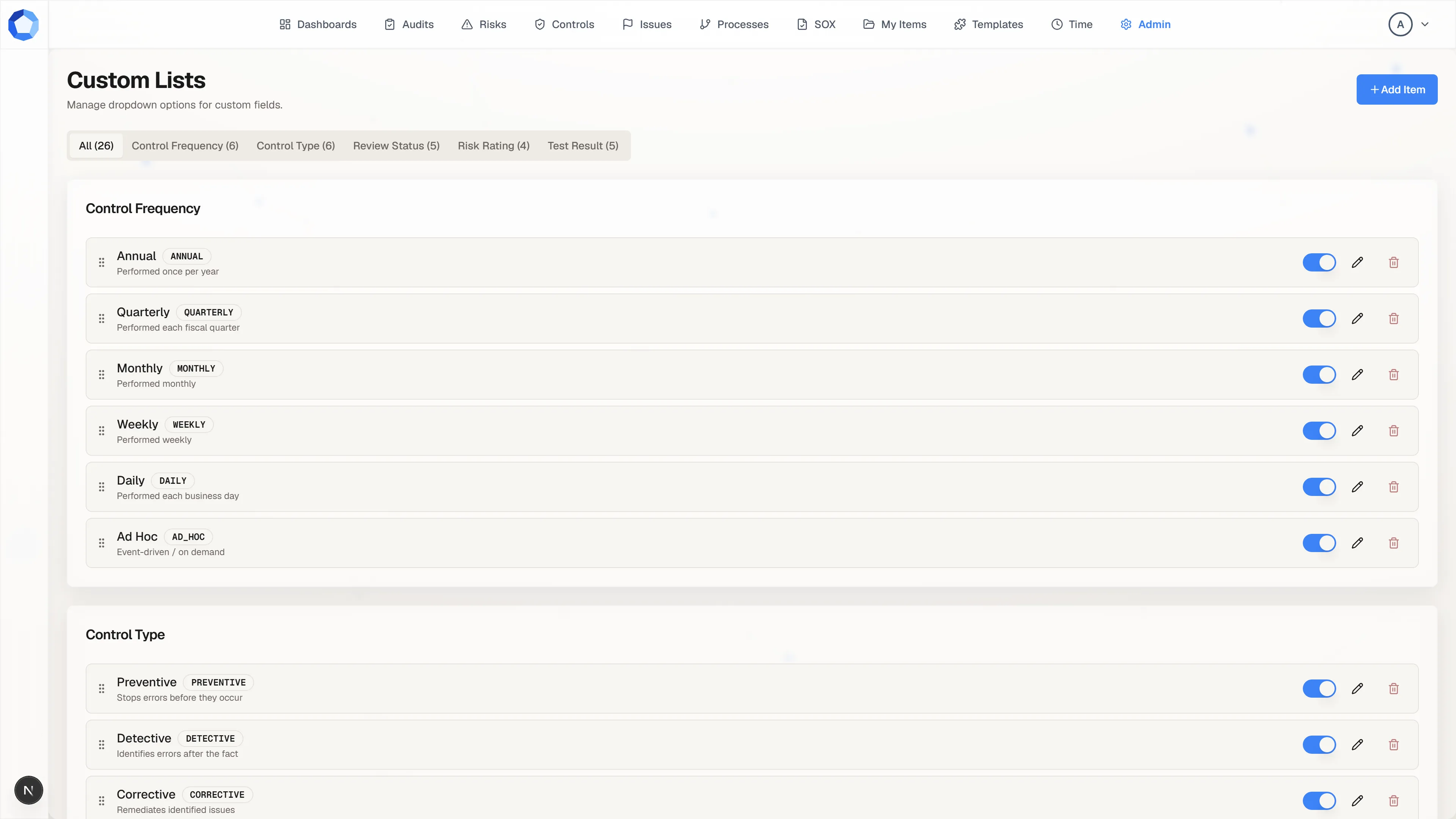
Section titled “One tab per category”Values are grouped into categories, and the tabs across the top are those categories with a count each: an All tab first, then Control Frequency, Control Type, Review Status, Risk Rating, and whatever else your tenant has defined. Selecting a tab narrows the page to that category.
Add Item, at the top right, opens a dialog asking for the category, the stored value, the display label, and an optional description. Typing an existing category name adds to that list; typing a new one starts a new category.
A value is two strings, not one
Section titled “A value is two strings, not one”Each row carries a label in plain text and its stored value in the
small monospaced chip beside it: Annual and ANNUAL, Ad Hoc and AD_HOC. The
line underneath is the description, which is guidance for whoever is choosing
the value rather than anything a report reads.
The distinction matters, and the product enforces it. The label is what people see and is safe to reword whenever it reads badly, which is why the edit dialog lets you change the label and the description and nothing else. The stored value is what dashboards, filters, import files, and agents match on, so it is fixed when the value is created: the category and value boxes are locked as soon as you are editing rather than adding.
Spend the extra ten seconds on the stored value, then. Match the convention the rest of the category already uses, because the only way to change one later is to delete the value and add a replacement, and that leaves every record carrying the old one pointing at a value nothing can explain.
Retire a value, do not delete it
Section titled “Retire a value, do not delete it”Each row ends with three controls: a toggle for active, a pencil to edit the label and description, and a bin to delete. The drag handle at the left sets sort order, which is the order the value appears in wherever people pick from the list.
Turning the toggle off retires the value: it stops being offered for new work while every record that already carries it keeps reading correctly. Deleting it removes the vocabulary entry outright and leaves those records pointing at a value nothing can explain. Retire by default.
Before you delete a value
Section titled “Before you delete a value”Stored values are a contract with everything downstream, and deleting one is the only way to take a stored value out of circulation. Before you do, check:
- Existing records already carrying it.
- Saved dashboard filters written against the old value.
- Import files your organization reuses, which will silently start writing the old value again on the next run.
- Workflow templates whose decision branches match on it.
Adding a value is cheap and reversible. Removing one is neither, which is why the active toggle exists.
Editions
Section titled “Editions”The page is usable on every edition, but two controls are Masterpiece features: creating a new value and deleting one. On the Studio edition those are hidden, and editing a label or description and toggling a value active or inactive work as normal. See Item types and fields for the wider edition gating.
When someone says the option they need is missing
Section titled “When someone says the option they need is missing”The right answer is to add the value here, not to work around it. A member who cannot find the option they need will type the nearest thing into a free-text field, and the register that used to group cleanly stops doing so. Ask what the missing value should be called, add it with a stored value that matches the convention of its category, and the option appears for everyone.
Where the values are read
Section titled “Where the values are read”| Reader | How it uses them |
|---|---|
| Imports and exports | The customLists section of the transfer file carries them in and out whole. |
| Dashboards | Group and filter on the stored value, never the label. |
| Agents | Read them through GraphQL so proposals use vocabulary your tenant recognizes. |
| Activity log | Records every create, update, and delete as a custom-list entry. |