Using AssureSwarm · Guide
Working with items
Items are the records your organization actually runs on: issues, risks, controls, audits, whatever your administrators configured. Scroll, and follow one from a search result to an updated record with its own history.
- Find
- Open
- Create
- Update
- Yours
Scroll
Every item belongs to an item type your administrators configured, so the names, fields, and statuses on your screen are your tenant’s, not ours. What you can see and change comes from your page access and item permissions.
Find a record
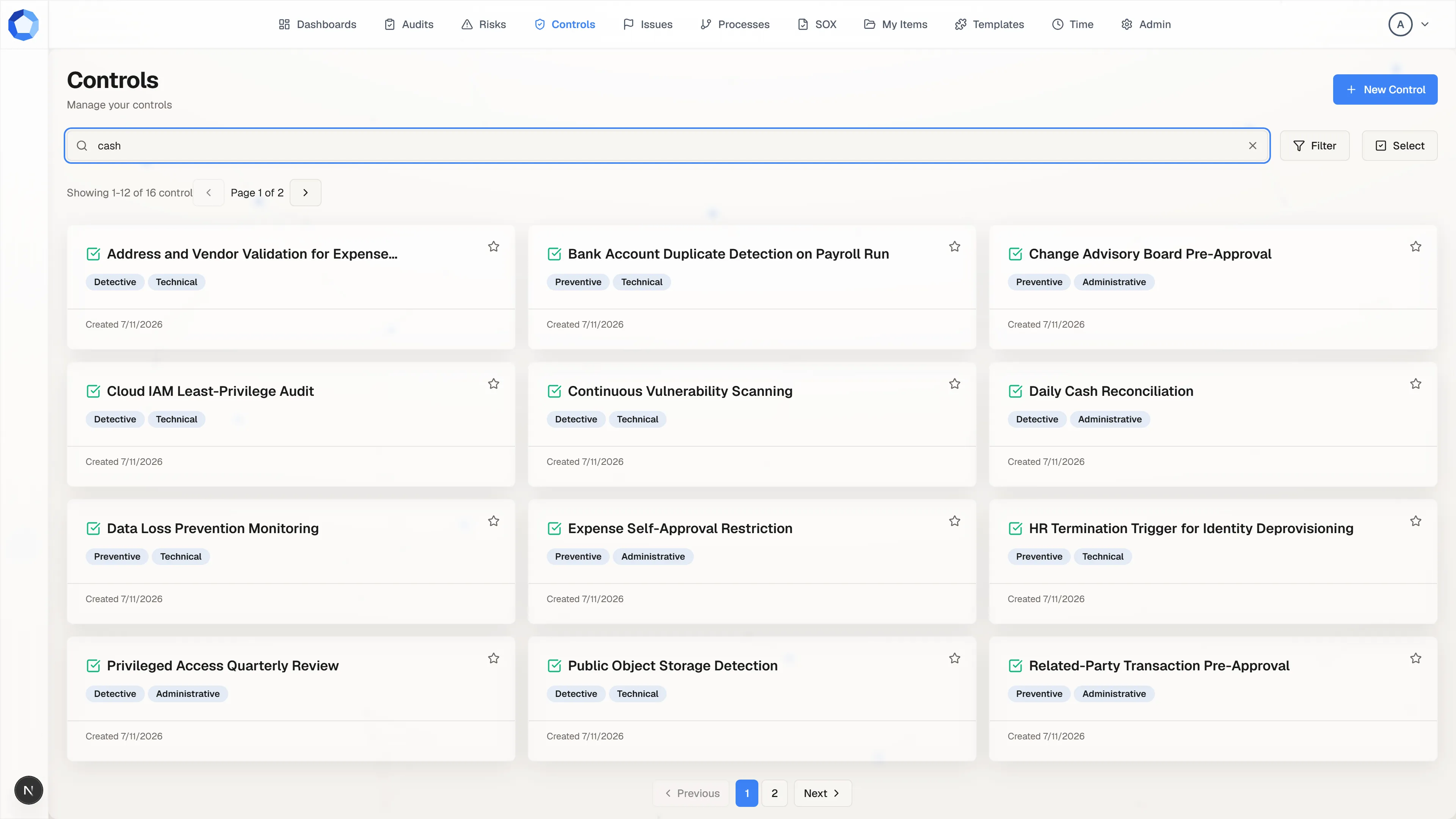
Section titled “Find a record”Open an item type’s page from the top navigation, then narrow the list: type into the search box, add a Filter, or switch on Select to act on several records at once. Which fields you can filter by depends on how that item type is configured.
Records reach you other ways too. Dashboard tables and charts link straight through to the items behind them, another item’s relationships jump between connected records, and My Items collects the ones that are yours.
Read one
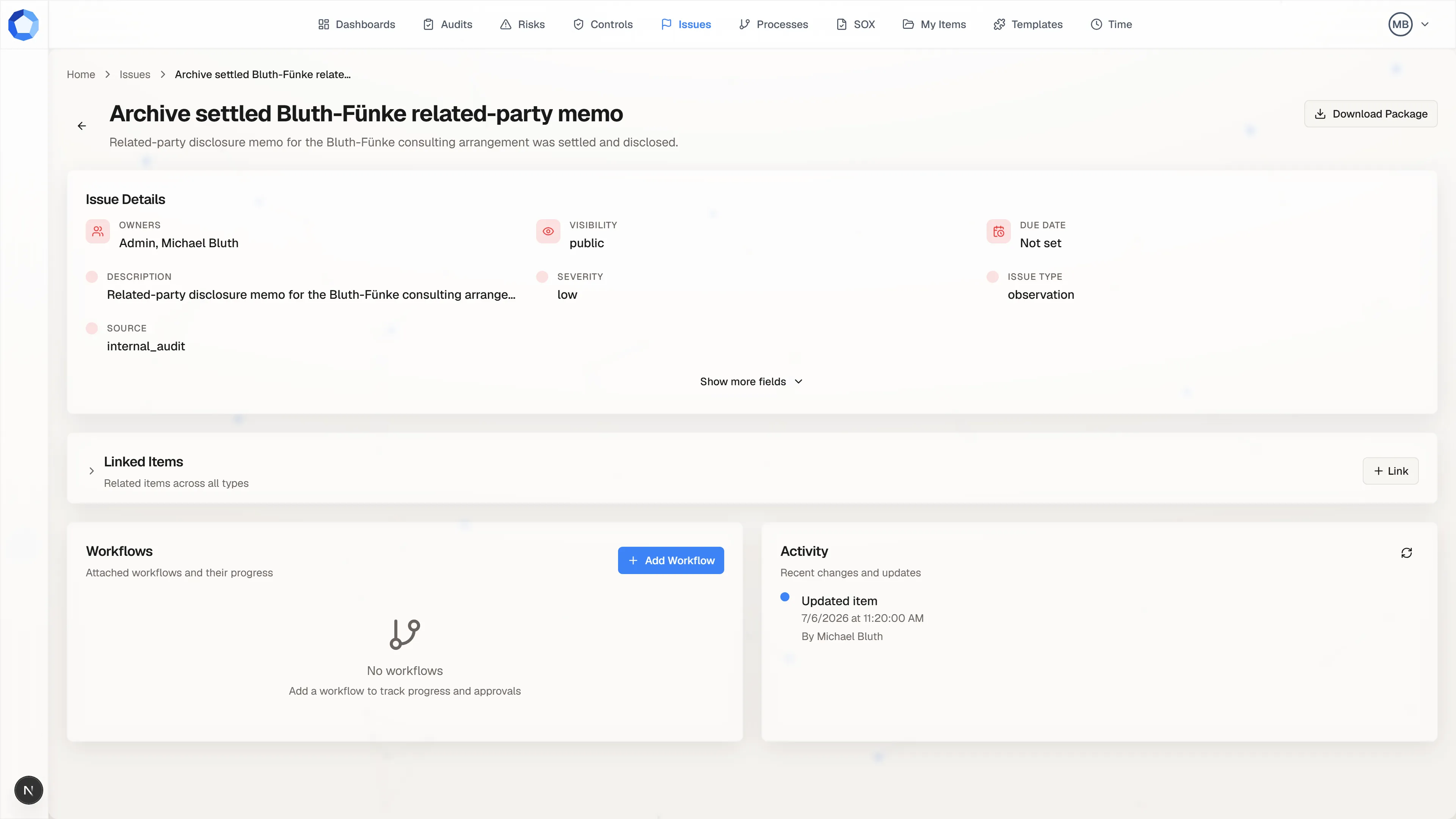
Section titled “Read one”An item opens as a single page. The details card at the top carries its owners, visibility, due date, and every field configured for its item type; Show more fields reveals the rest. Below it sit Linked Items, the Workflows running on the record, and its Activity feed.
If a field looks read only, that is usually permissions or field configuration rather than a bug.
Create one
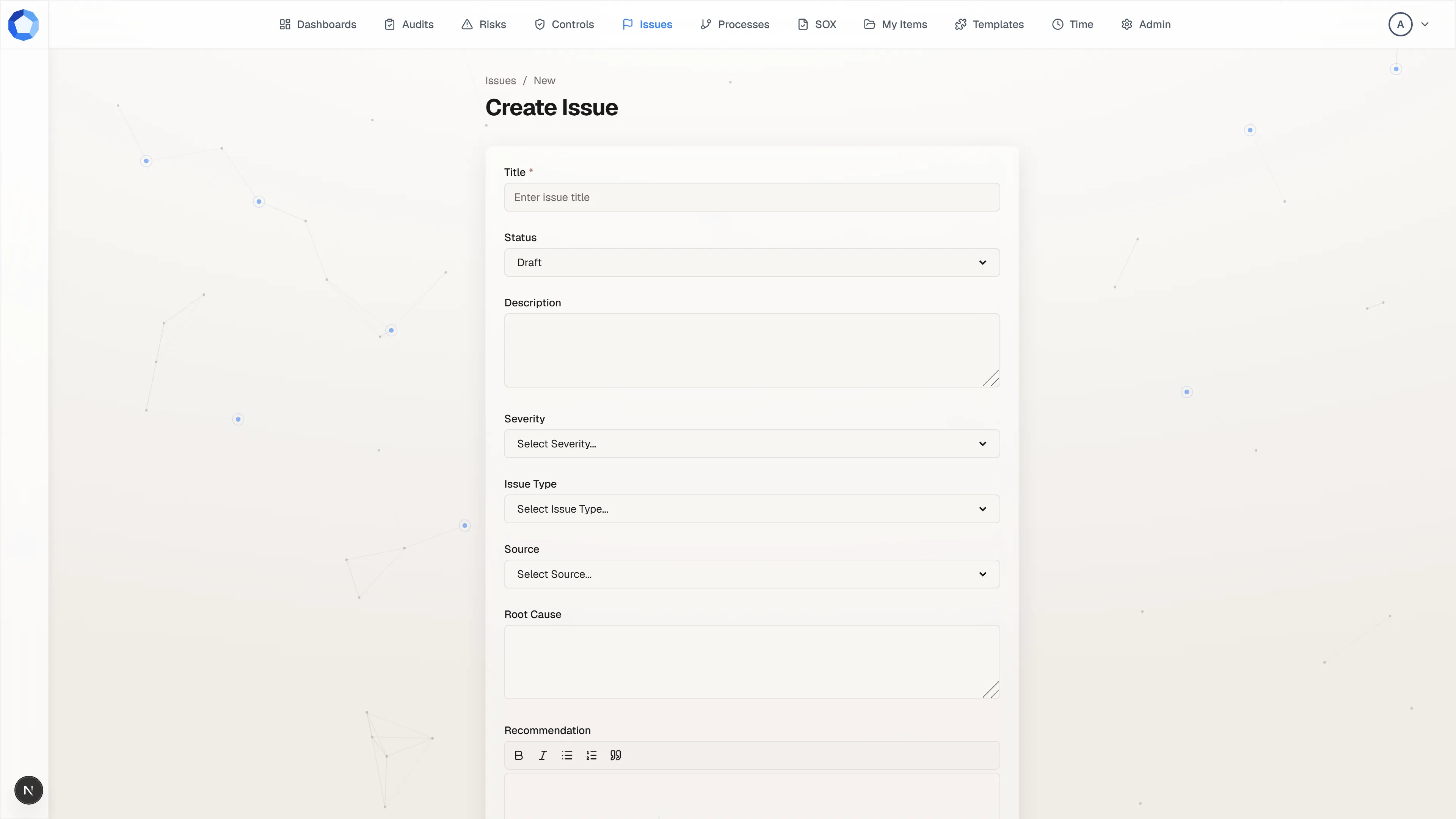
Section titled “Create one”The new-record button on an item type’s page opens a create form built from that type’s fields. Start in Title, the field marked required with a red asterisk, and leave Status on the default your administrators chose for that type. For select fields, pick from the options offered.
Add owners before you save, so the record has someone responsible from the moment it exists.
Update it, and leave a trail
Section titled “Update it, and leave a trail”Edit the fields you have access to change. Every update is recorded in the item’s Activity feed with who made it and when, so the record carries its own history and you never have to reconstruct one.
If you can see a field but cannot edit it, you most likely hold view-only item permission rather than edit access.
When an agent proposes a record
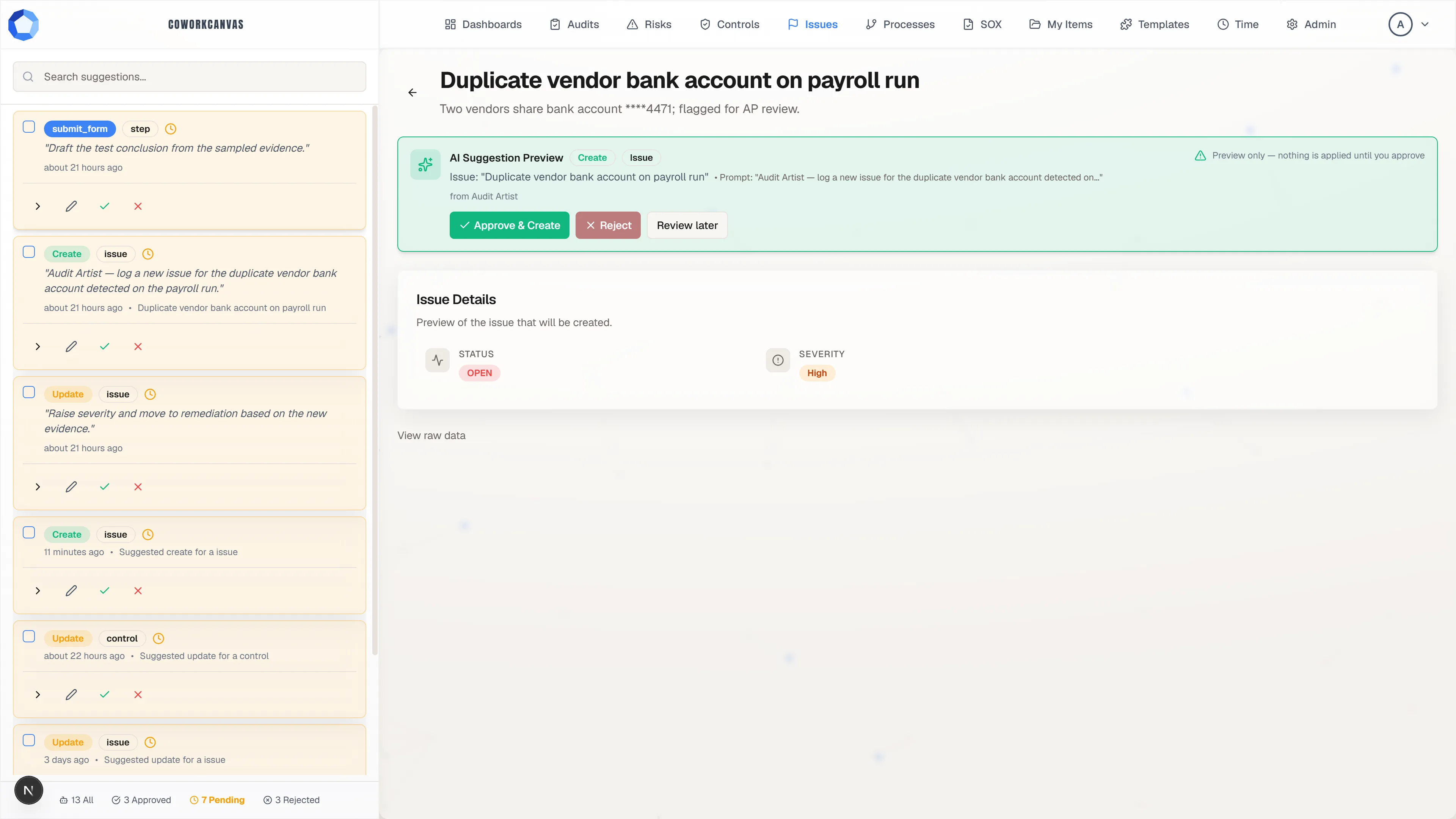
Section titled “When an agent proposes a record”A change an agent proposes previews in place on the page it would touch, as an AI Suggestion Preview banner offering Approve & Create, Reject, and Review later. The record does not exist until you approve it.
Reviewing suggestions covers the decision in full.
Everything that is yours
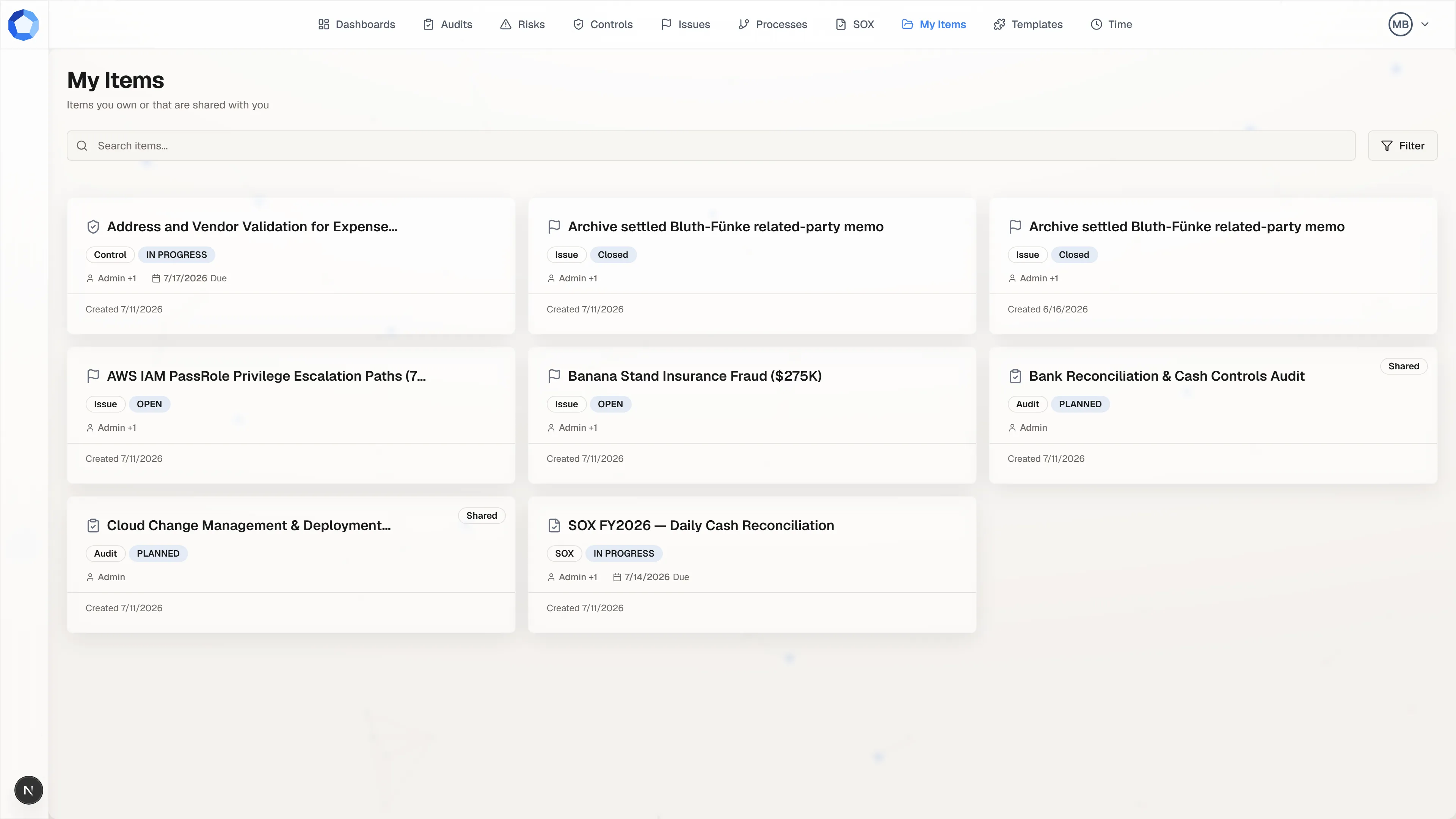
Section titled “Everything that is yours”My Items gathers the records you own and the ones shared with you, across every item type, with a Shared badge on the ones that came from someone else. Search the queue, or narrow it with Filter.
Favorite the items and dashboards you return to, so they stay one click away.
What an item holds
Section titled “What an item holds”| Element | What it shows |
|---|---|
| Title, status, due date | The item’s basic state. |
| Fields | The values configured for its item type. |
| Owners | Who is responsible for the item. |
| Linked items | Its connections to other records. |
| Workflows | The workflows running on it. |
| Documents | Files and links attached to its workflow steps: see Documents. |
| Activity feed | A record of changes, with who made them and when. |
Filling fields well
Section titled “Filling fields well”When you create or update a record, fill every required field, leave status on the item type’s default until the work says otherwise, and choose select and multiselect values from the options offered.
Related items
Section titled “Related items”Add a relationship to connect two items. AssureSwarm has four relationship kinds, parent, child, sibling, and related (the default), and a given pair of items can carry one link per kind: the same two items could be linked as both related and child, for instance, but not as related twice.
Use relationships to model dependencies and supporting records, and to give yourself a path between records you keep opening together.
Owners and roles
Section titled “Owners and roles”An item can have more than one owner. Where your tenant defines roles for an item type, each role captures a specific named responsibility, and a given person holds at most one role per item.