Admin Guide · Setup
Tenant settings
Global Settings is short, and every switch on it moves for everybody at once. Scroll what is actually there, then read what is deliberately not.
- Sign-in
- Domains
- Documents
Scroll
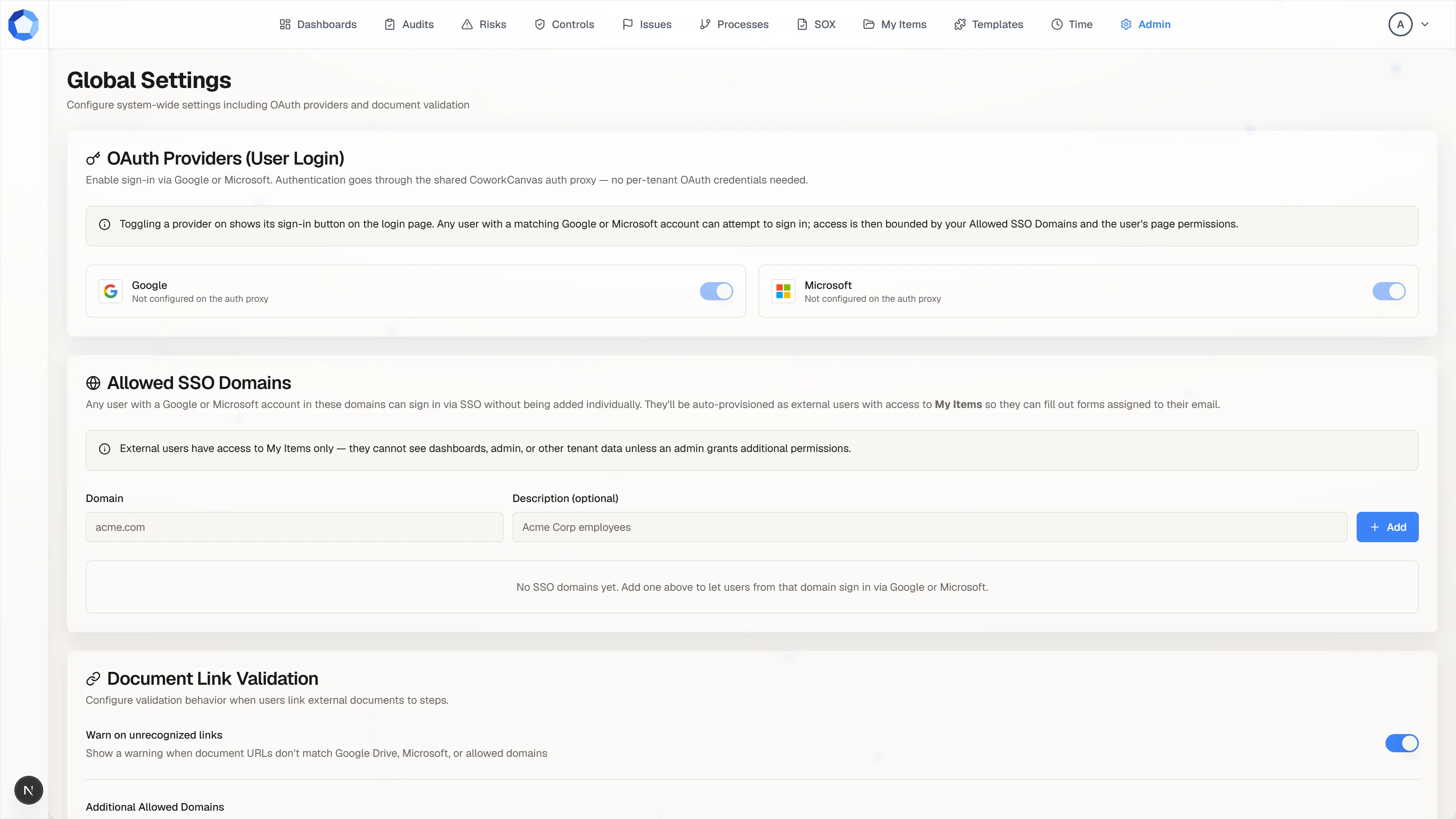
System Settings, from the Administration page, opens Global Settings. It is a stack of cards, each one tenant-wide: there is no per-person or per-team variant of anything here, so treat every change as an announcement.
Who can sign in, and how
Section titled “Who can sign in, and how”OAuth Providers (User Login) carries a toggle each for Google and Microsoft. Turning one on adds its button to the login page for everyone; turning it off removes it, including for people already in the habit of using it. Authentication runs through the shared AssureSwarm auth proxy, so there are no credentials for you to supply.
Single sign-on covers this card in full, along with enterprise SAML and the sign-in troubleshooting table.
Which domains are trusted
Section titled “Which domains are trusted”Allowed SSO Domains lists the email domains whose people may sign in without an account being created for them first. Each entry takes a domain and an optional description.
The effect is narrow on purpose. Someone arriving this way is provisioned as an external user with access to My Items only, which is enough to answer a form addressed to them and nothing more. Widening that is a separate, deliberate act in User Permissions.
What counts as a trustworthy document link
Section titled “What counts as a trustworthy document link”Document Link Validation governs what happens when someone links an external document to a workflow step. Warn on unrecognized links shows a warning when a URL does not match Google Drive, Microsoft, or a domain you have allowed.
Additional Allowed Domains takes a comma-separated list, such as your own file server or the document store your organization standardizes on. Google Drive and Microsoft are always allowed and do not need listing. This is a warning, not a block: it nudges people away from pasting a link nobody else will be able to open, without stopping legitimate work.
Branding
Section titled “Branding”Below the cards above, Branding sets the Sidebar Title and Sidebar Logo everyone in the tenant sees. The title falls back to the product name when left empty, and the logo falls back to the AssureSwarm mark.
This is the one card here that is purely cosmetic, and it is the one people notice fastest. Set it once when a tenant is created rather than experimenting with it during a working day.
What is not on this page
Section titled “What is not on this page”Global Settings is deliberately small. The decisions administrators most often go looking for here live with the thing they configure:
| Looking for | It lives at |
|---|---|
| Adding a person, or granting them a page | Users and access |
| Record types, fields, statuses | Item types and fields |
| Shared dropdown values | Custom lists |
| Reusable processes | Workflow templates |
| Loading or extracting data | Imports and exports |
| Which AI platforms may connect | AI integrations |
| Who changed a setting, and when | Activity log |
The rule of thumb: if a setting only affects one item type, one template, or one person, it is configured on that thing. Global Settings holds only what is true for the whole tenant at once.
Changing a setting safely
Section titled “Changing a setting safely”Every change here is immediate and applies to everyone, so the useful discipline is small and boring:
- Change one thing. When two settings move together and something breaks, you have two suspects instead of one.
- Verify from the outside. A provider change is visible on the login page; a document-validation change is visible the next time someone pastes a link.
- Confirm you can still get in. Keep a second administrator able to sign in by a method you did not just change.
Every change lands in the activity log as a
system-setting entry with the administrator who made it, which is the fastest
answer when a tenant behaves differently than it did last week.