Getting Started
Your first hour
Signing in, finding your way around, and doing your first piece of work. Scroll, and walk it in the real product: from first sign-in to your first completed step and suggestion review.
- Sign in
- Orient
- Find
- Work
- Approve
- Review
Scroll
This guide assumes your organization already runs a AssureSwarm tenant and you have access to it. If you administer the tenant, see the Admin guide instead. If you’re setting up or operating as an AI agent, see the Agent operating guide.
Sign in
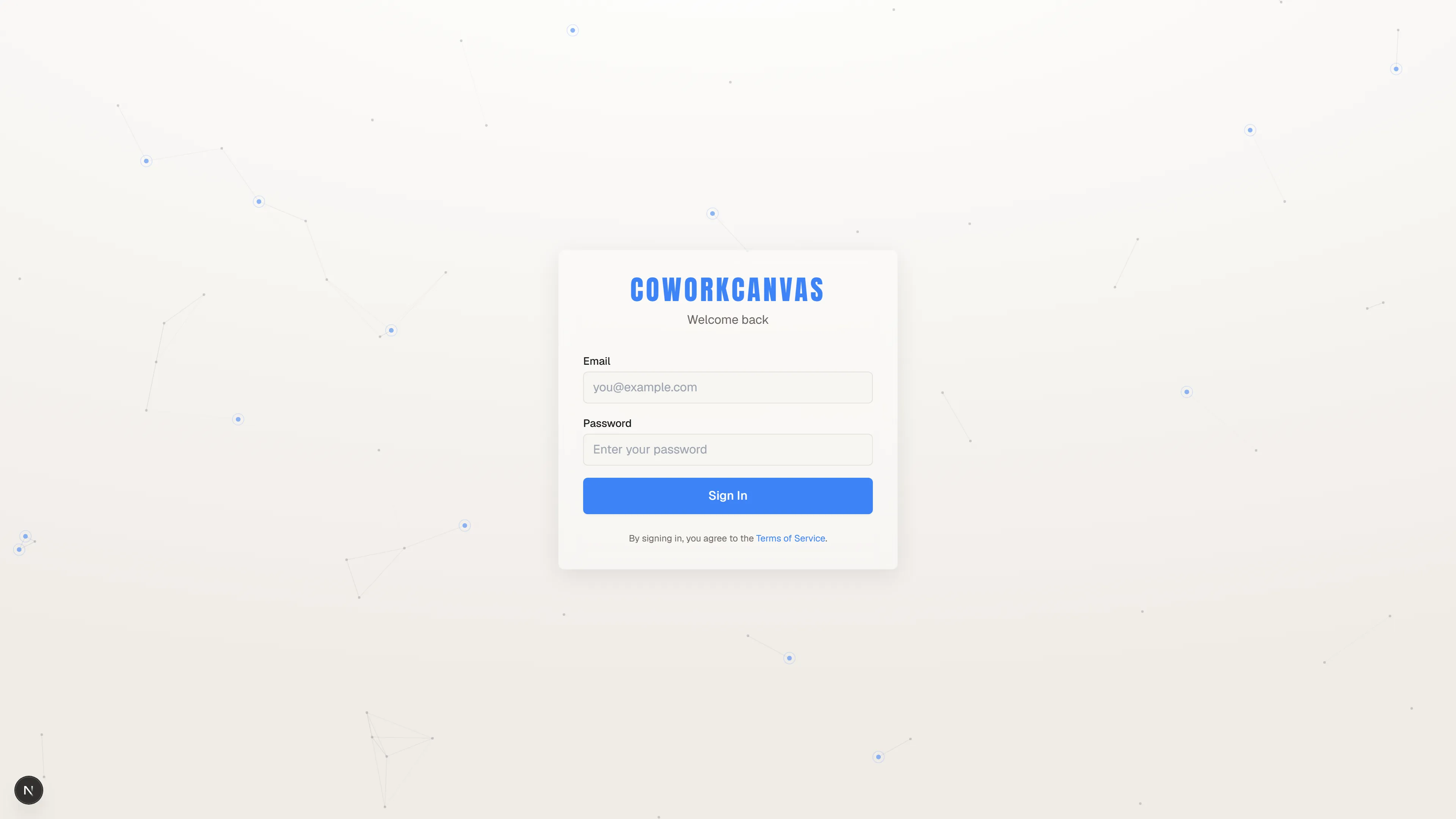
Section titled “Sign in”Go to your tenant’s AssureSwarm URL, typically
https://<tenant>.assureswarm.com, and sign in with your organization’s
single sign-on, or with email and password if that’s enabled for your
account.
If sign-in fails, the usual causes are an account that hasn’t been created yet or an email domain that isn’t on the tenant’s allowed list. An administrator resolves both; see Troubleshooting.
Find your way around
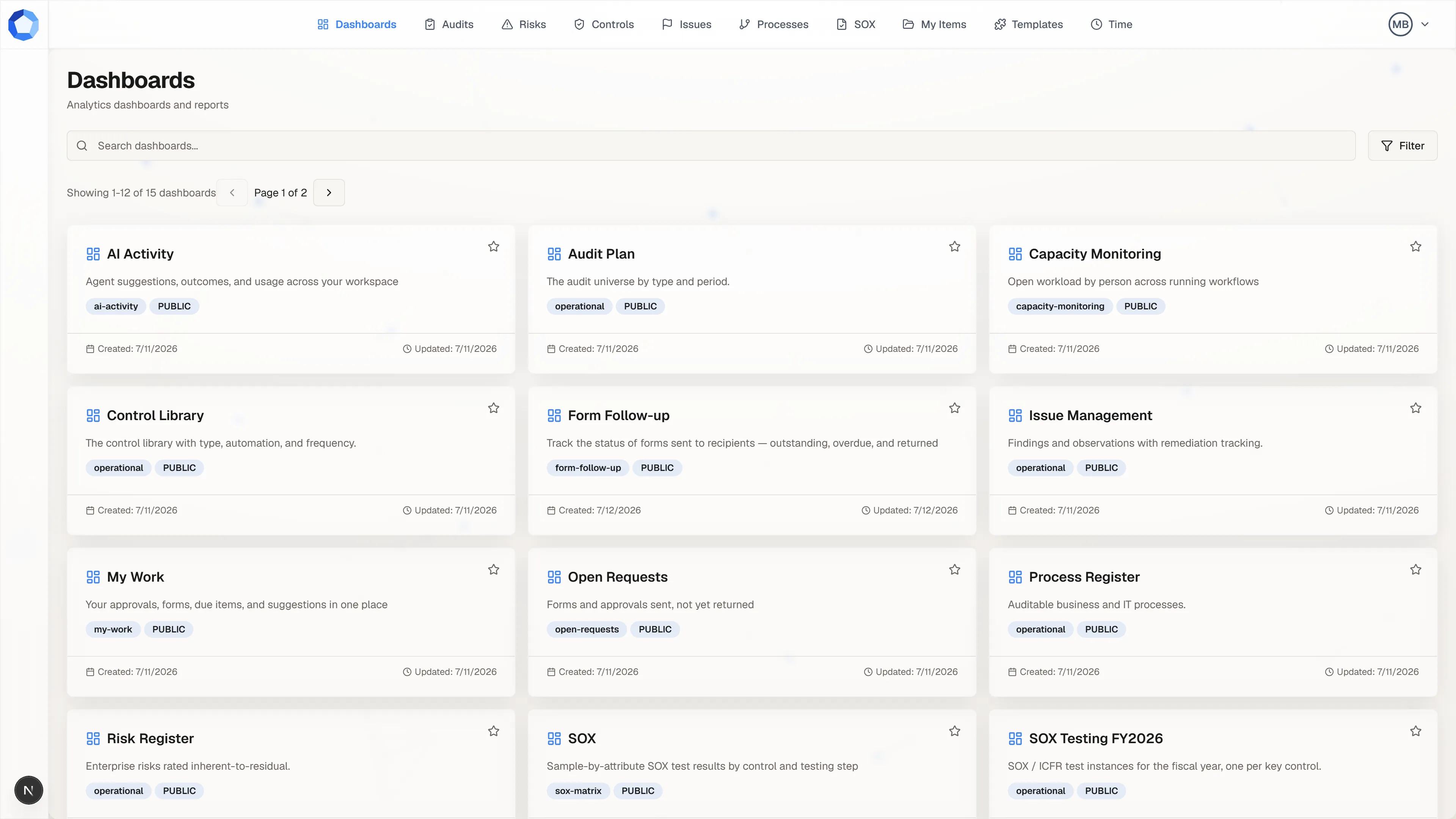
Section titled “Find your way around”The navigation is built from your tenant’s data: Dashboards, one entry per item type (Issues, Risks, Audits, and so on), My Items, Templates, and Time Keeping. What you see depends on your page access, so your navigation may be shorter than a colleague’s.
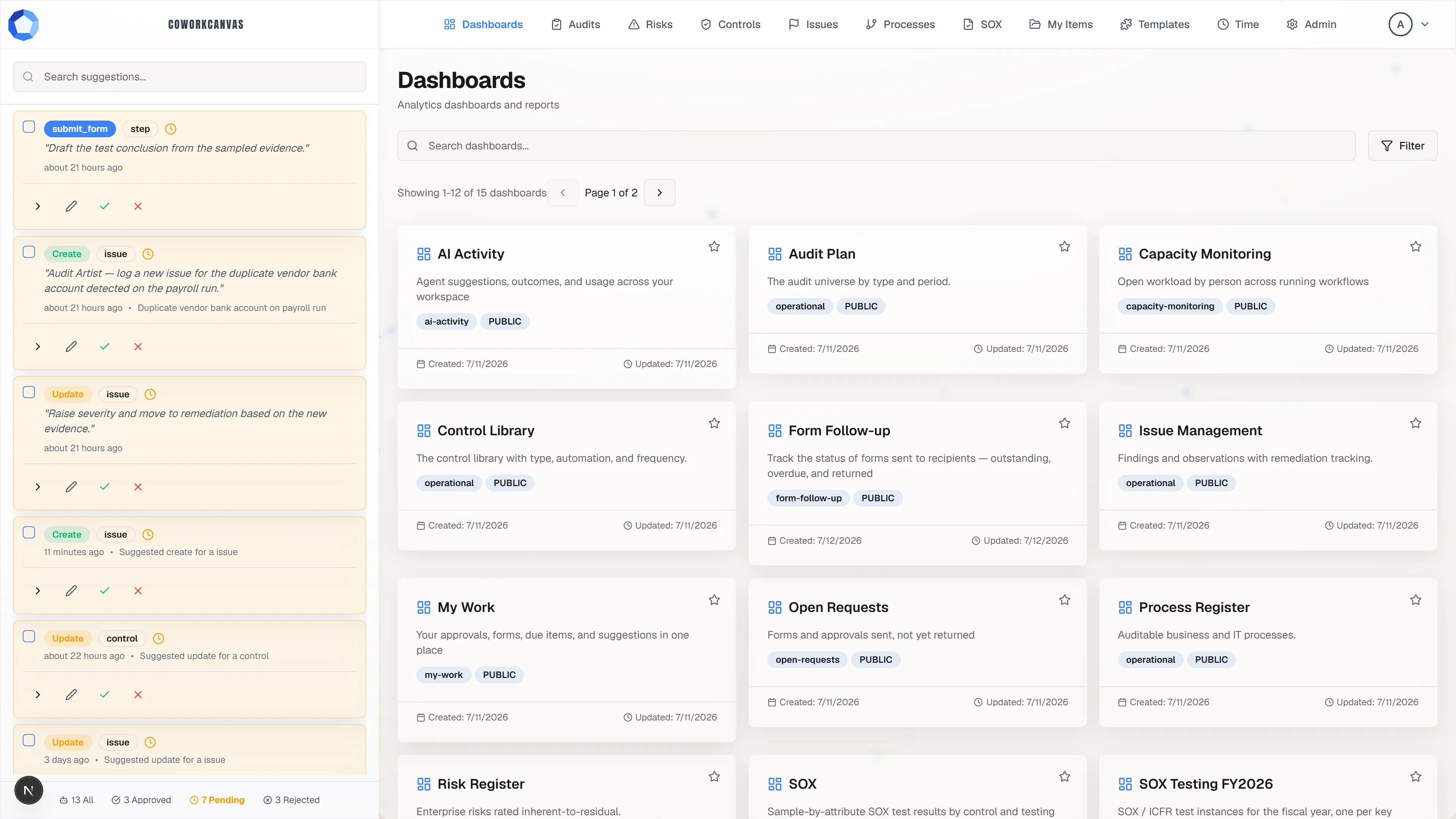
Your avatar, top right, opens personal settings, the forms inbox, and AI agent setup.
Find your work
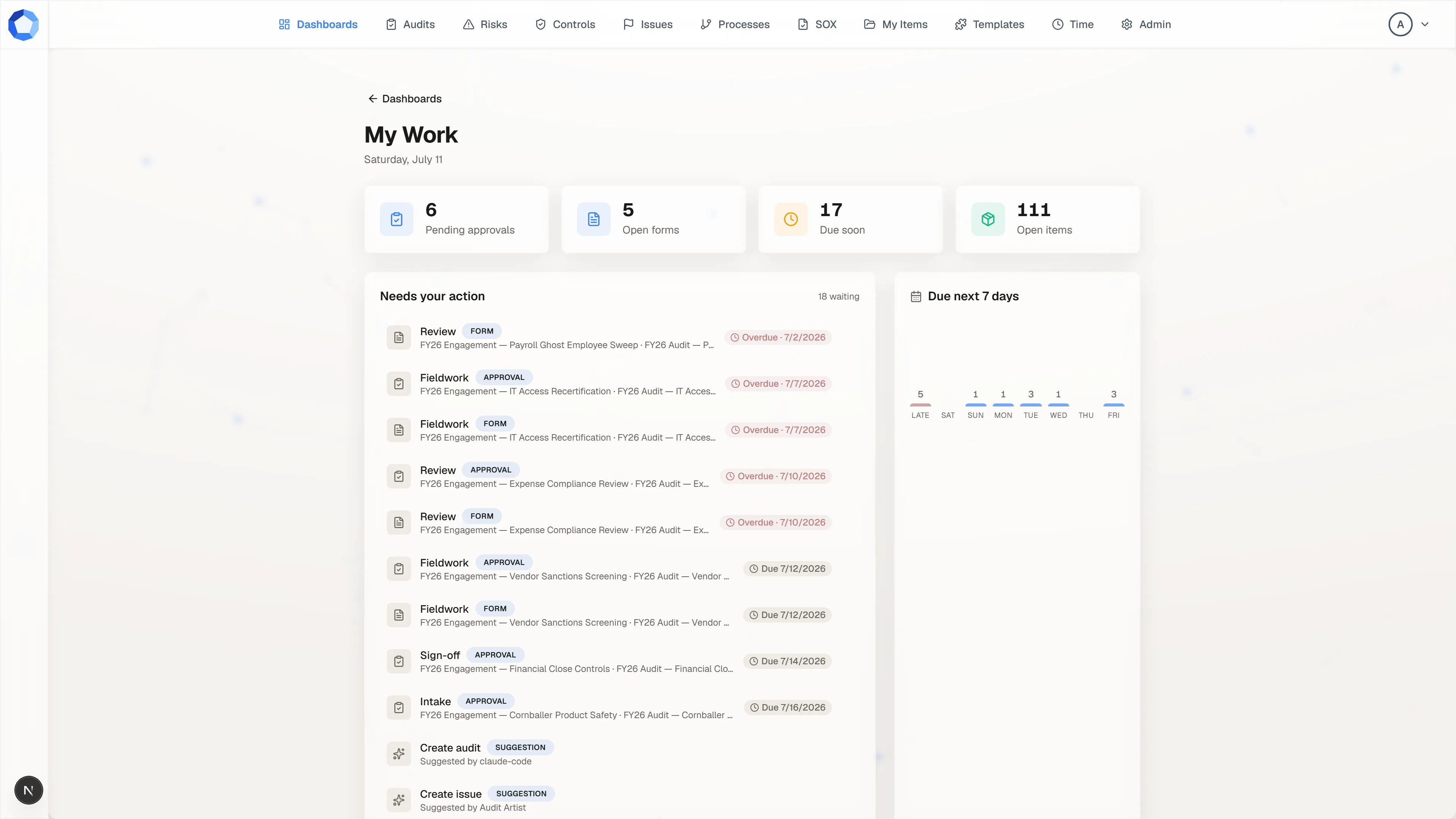
Section titled “Find your work”Open My Work from Dashboards: it gathers the steps waiting on your approval, the forms assigned to you, and items that are due, all in one place. My Items shows everything you own or that’s shared with you. Favorite any dashboard to keep it one click away.
Do the work
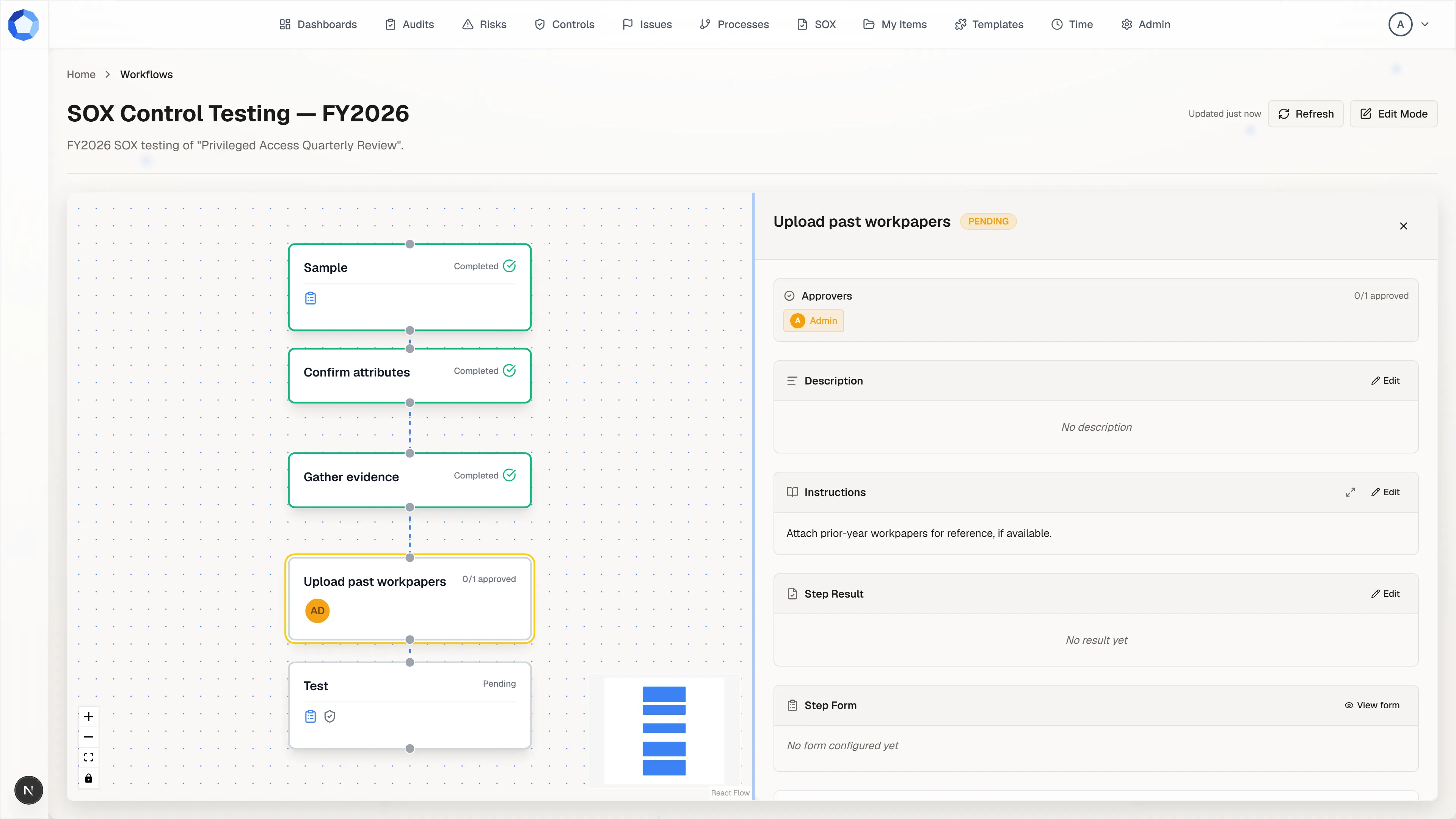
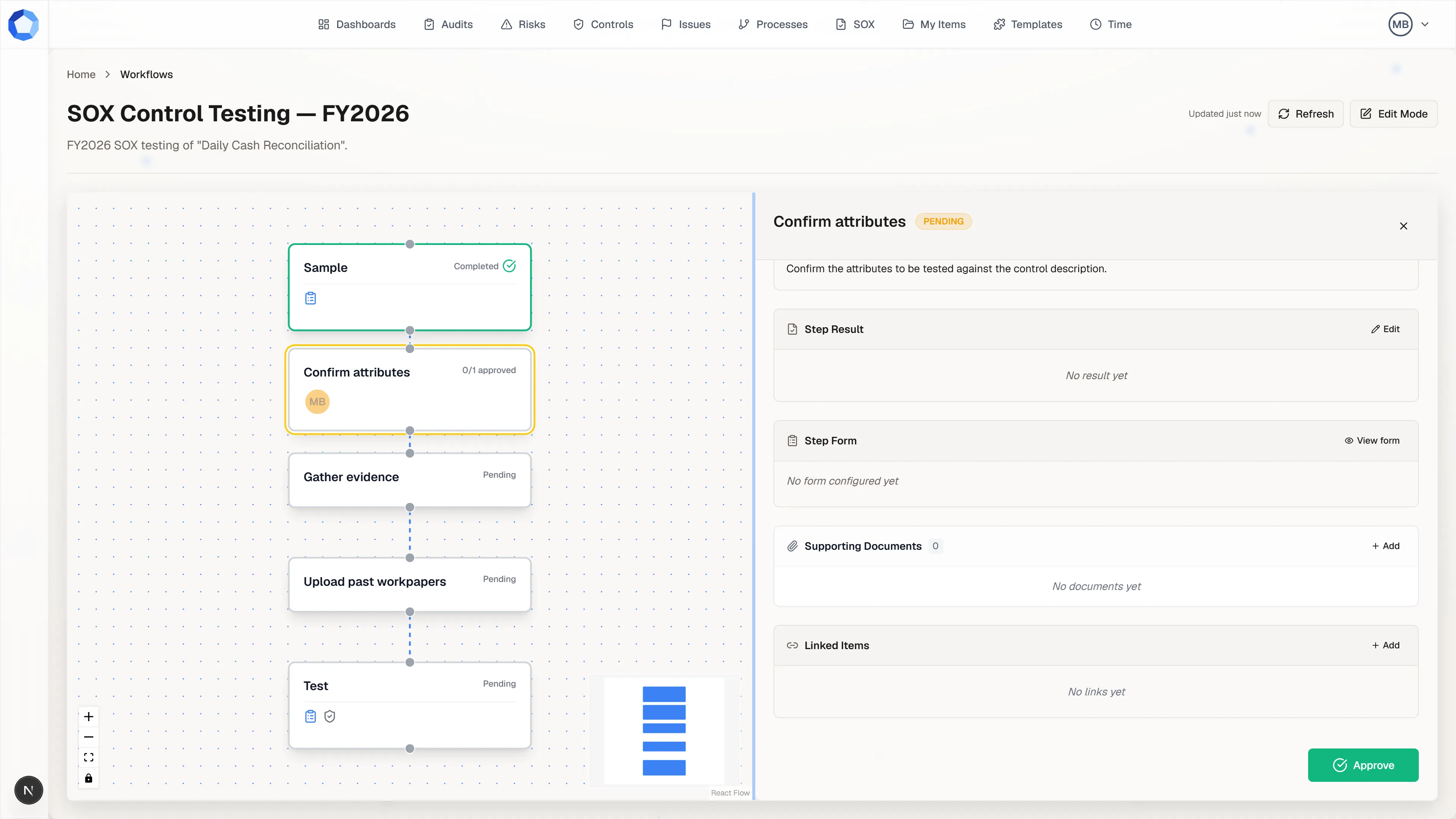
Section titled “Do the work”Open the workflow and select the step that’s waiting on you. Read its description, instructions, and due date, then produce the outcome: write a result (Markdown is supported), complete the step’s form, or attach documents where evidence is expected.
Working a step walks this in full.
Approve it, or send it back
Section titled “Approve it, or send it back”When the work is in place, approve the step. A step completes once its required approvals are in; its status is derived from those approvals, never set by hand. If something needs to change, reject with comments so the preparer knows exactly what to fix.
Review your first suggestion
Section titled “Review your first suggestion”If your tenant uses AI agents, their proposed changes wait in the Activity Hub on the left until a person decides. Open one, review the before and after alongside the reason given, then approve or reject.
Nothing changes until you approve it: a suggestion on its own never modifies your data. See Reviewing suggestions.
Every page, at a glance
Section titled “Every page, at a glance”| Page | What it’s for |
|---|---|
| Dashboards | Metrics, charts, tables, and reports across your tenant’s data. |
| Templates | Reusable workflow templates you can start a new workflow from. |
| Time Keeping | Log and submit time entries. |
| My Items | Items assigned to or owned by you. |
| Settings | Your personal account settings. |
| Admin | Tenant configuration, visible only to administrators. |
| Item type pages | One page per configured item type (for example, Issues or Risks). |
| Forms Inbox | Forms assigned to you that are waiting for a response. |
Learn the vocabulary
Section titled “Learn the vocabulary”These map to the fuller definitions in Concepts:
| Term | Meaning |
|---|---|
| Item type | A configurable record type your tenant defines: issue, risk, audit, control, vendor, and so on. |
| Item | One record of an item type. |
| Field | A single structured value on an item, step, or form. |
| Workflow | A set of steps attached to an item, usually started from a template. |
| Step | A unit of work in a workflow: instructions, an approver or approvers, sometimes a form or documents. |
| Approver | Someone whose approval a step requires before it can complete. |
| Form | A set of structured questions attached to a workflow step. |
| Suggestion | A proposed change, often from an agent, that a person reviews before it’s applied. |
| Dashboard | A configurable page of metrics, charts, tables, and filters. |
Respond to a form
Section titled “Respond to a form”Forms assigned to you appear in Forms Inbox. Open one, answer its questions, and submit. See Forms for how forms connect to workflow steps.
Connect an AI assistant (optional)
Section titled “Connect an AI assistant (optional)”If your organization allows it, you can connect Claude or another MCP-capable assistant to your tenant and work with your data in chat. See Connect an agent to set it up.
Where to go next
Section titled “Where to go next”- Using AssureSwarm: day-to-day tasks once you know the basics.
- Concepts: how items, workflows, forms, and suggestions fit together.
- Admin guide: if you configure the tenant rather than just use it.
- Reference: field types, scopes, limits, and a full glossary.