Admin Guide · Setup
Users and access
Every grant you make here shows up as something a colleague can or cannot open. Scroll, and follow one person from account creation to the navigation they end up with.
- Find
- Create
- Grant
- Effect
Scroll
Permissions explains the model: page access decides which navigation entries a person sees, item permissions decide which records they can open, and the admin flag overrides both. This page is the procedure for applying that model to a real person.
Start at User Permissions
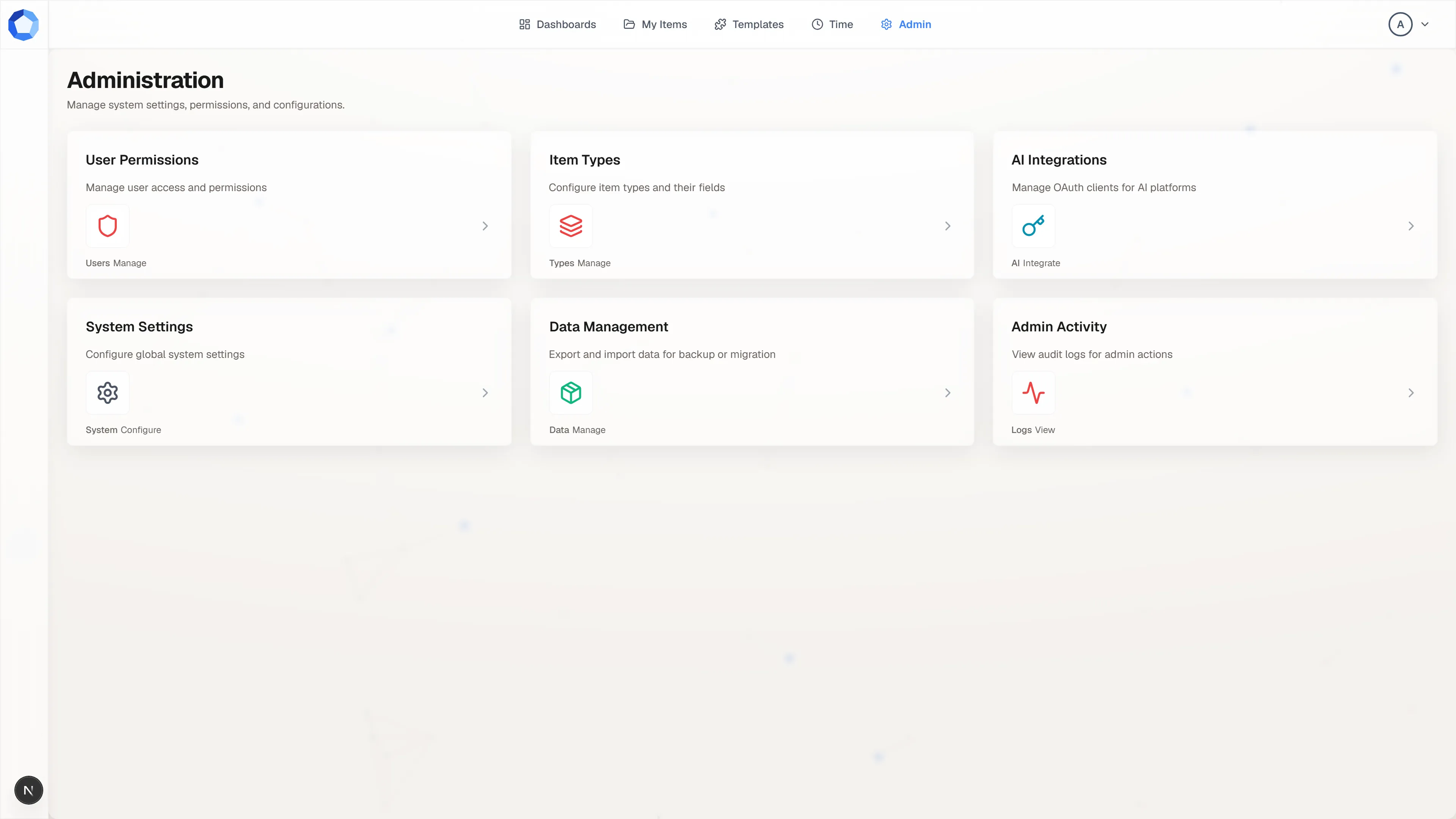
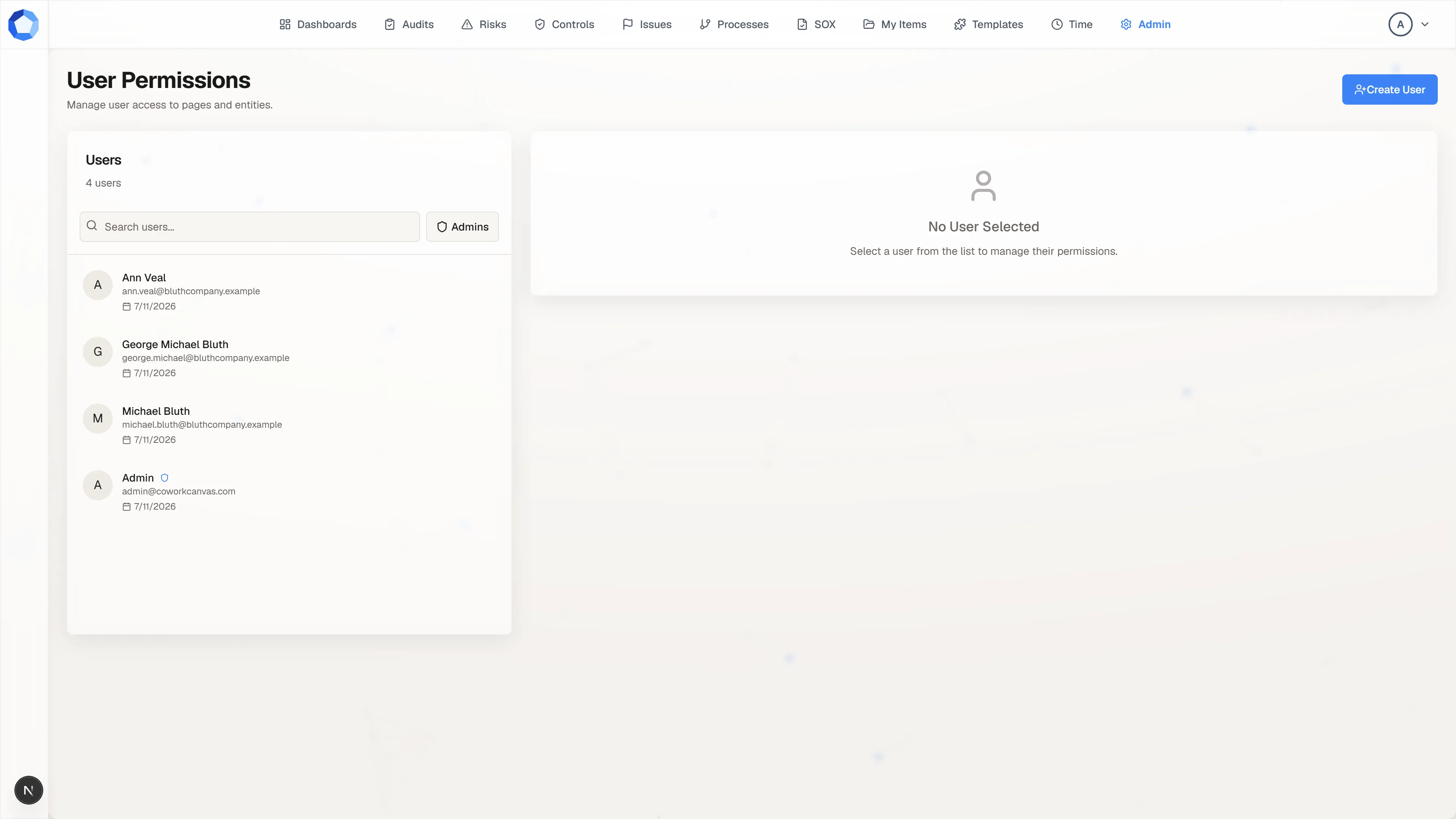
Section titled “Start at User Permissions”Admin in the top navigation opens the Administration page: six cards, one per configuration area. User Permissions is the first one, and it is where accounts, page access, item access, and the admin flag all live.
The Admin entry is itself a page grant, so most colleagues never see this screen at all. Keep it that way: an administrator can change what every other person in the tenant can see, including other administrators.
Create the account
Section titled “Create the account”Create User, at the top right, asks for an email, an optional full name, and a role of either User or Admin. That is the whole form. Choosing Admin here grants unrestricted access immediately, so choose User unless the person genuinely administers the tenant.
There is no open self-signup. Someone gets an account by being created here, by arriving in a CSV user import, or by signing in from an allowed SSO domain, which provisions a much narrower account than this form does.
Grant the pages they need
Section titled “Grant the pages they need”Select a person in the list and this panel fills with two tabs. Page Access
carries one toggle per configured item type, then Dashboards, Templates, Time
Keeping, My Items, and Admin. Item Permissions grants view or edit on
individual records.
Each toggle is literally a navigation entry. Turn on Controls and a Controls entry appears in that person’s top navigation next time they load the app; leave it off and the page does not exist for them. Grant Default Pages applies the standard member set in one action, so you only hand-pick the item types.
What a missing grant looks like
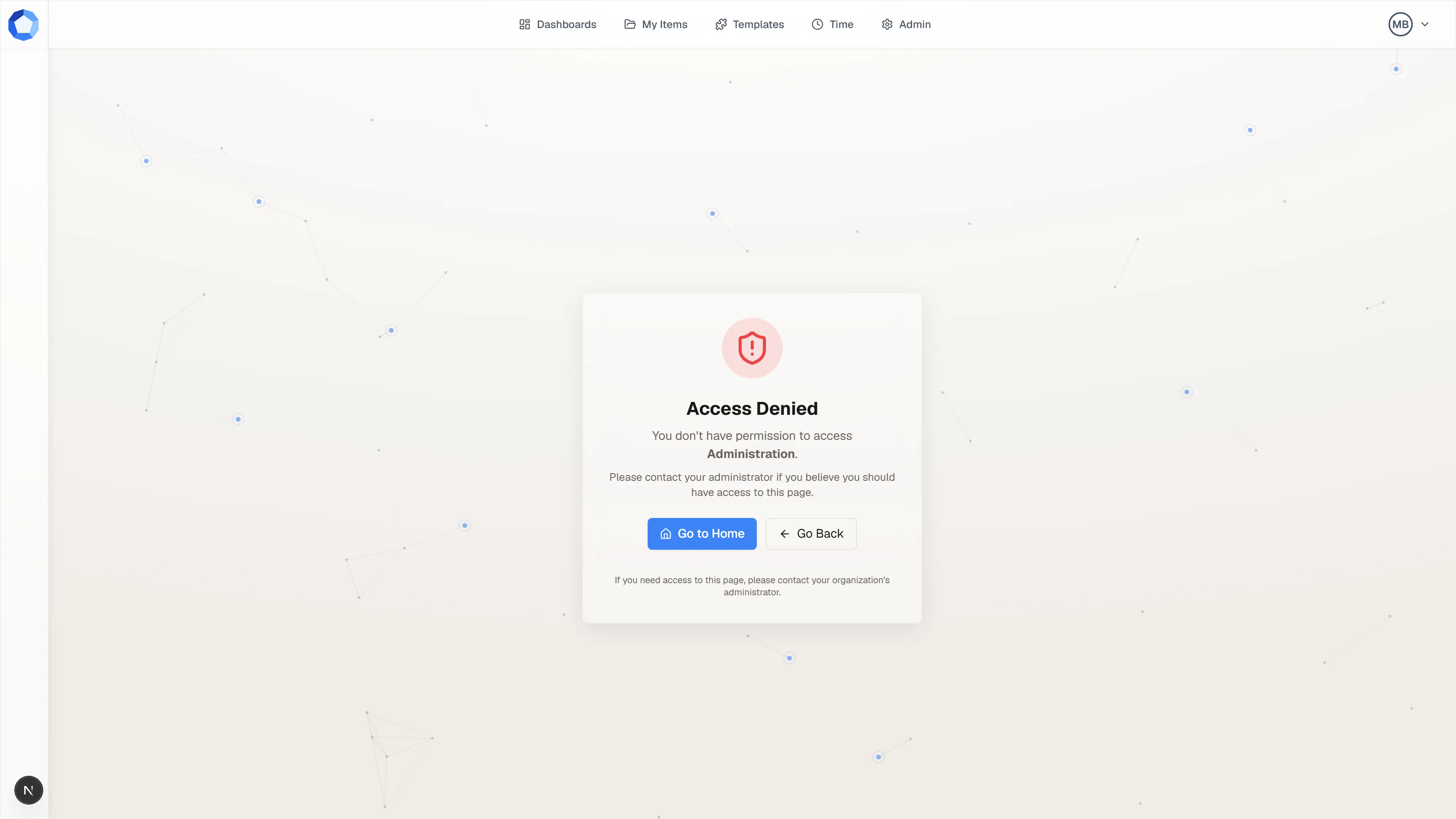
Section titled “What a missing grant looks like”This is the other side of a toggle you left off. The person reaches the page, by a link or a bookmark, and gets Access Denied with the name of the area they tried to open and an instruction to contact their administrator.
It is not an error and nothing is broken. When a colleague reports it, open their Page Access tab and check the one toggle named in the message rather than re-examining their account.
The page toggles, and what each one turns on
Section titled “The page toggles, and what each one turns on”| Toggle | What appears for the user |
|---|---|
| One per item type (Audits, Risks, Controls, and so on) | That item type’s page in the top navigation, with its register, search, and filters. |
| Dashboards | The dashboard gallery and every dashboard they are allowed to see. |
| Templates | The workflow template library, including the designer. |
| Time Keeping | The weekly time grid. |
| My Items | Items they own or that were shared with them. |
| Admin | The Administration page and everything behind it. |
Page access is a visibility gate, not a record gate. Someone can hold the Controls page and still see an empty register, because which individual records they can open is decided by item permissions and ownership.
Item permissions: view and edit
Section titled “Item permissions: view and edit”Item permissions are granted per record, with two levels: view and edit.
Granting view to someone who currently owns the record removes their ownership,
and the tenant refuses to remove the last owner, so a record always has someone
responsible for it.
People can always reach public items and items they own, which is why most tenants need very few explicit item grants. Reserve them for the cases the defaults do not cover: a reviewer who needs to see records they do not own, or a contributor who needs edit on one record outside their usual scope.
Administrators
Section titled “Administrators”The admin flag is not one more page toggle. An administrator has implicit access to every page, which is why the other toggles grey out once it is on, and can change any other user’s access.
Promote deliberately and demote as soon as a role no longer needs it. Every promotion and demotion is recorded in the activity log with who made the change.
External collaborators
Section titled “External collaborators”An external user is someone outside your organization: a vendor contact, an auditee, a client. External accounts are meant for the narrowest useful surface, usually a single form assigned to their email address.
An external respondent sees their assigned form and nothing around it: not the step, not the workflow, not the item. They also get a My Forms entry in the navigation instead of the internal forms inbox, because it is essentially all they use.
Bringing several people in at once
Section titled “Bringing several people in at once”Import Users, on the Data Management page, takes a CSV. The only required
column is email; name and isAdmin are optional, and boolean values accept
true/false, yes/no, or 1/0. A Download Template button gives you a
correctly-shaped file to start from.
Results come back per row as created, restored, skipped, or error, so a half-successful import tells you exactly which rows to fix. See Imports and exports for the whole surface.
Offboarding
Section titled “Offboarding”The destructive action on a selected user reads Delete User, but it deactivates rather than deletes. Access stops immediately, sign-in is refused, and everything the person did stays attached to their name: approvals, authored records, and activity history.
Deactivation cuts off anything acting as them, including agent tokens and OAuth authorizations. It does not reassign their work, so pair it with a pass over the items they owned and the steps they were an approver on.
Auditing access changes
Section titled “Auditing access changes”Every grant, revoke, promotion, demotion, and deactivation lands in
Admin Activity as a page-access, item-permission, or
user entry, with the actor and timestamp. When access looks different from what
you expect, read the log before you re-derive the configuration: the answer is
almost always a specific recorded change.