Using AssureSwarm
Around the shell
The frame every page sits inside: the top navigation, your avatar menu, the Activity Hub rail, and where sign-in puts you.
Every screen in AssureSwarm sits in the same frame. A navigation bar runs across the top, your avatar sits at its right end, and the Activity Hub runs down the left. Learn the frame once and every other guide in this section starts somewhere you already recognize.
The top navigation
Section titled “The top navigation”The navigation is built from your tenant’s own data rather than a fixed menu, so two people at two organizations rarely see the same row. The middle of the row is one entry per configured item type, and every entry is filtered by your page access, which is why your navigation may be shorter than a colleague’s.
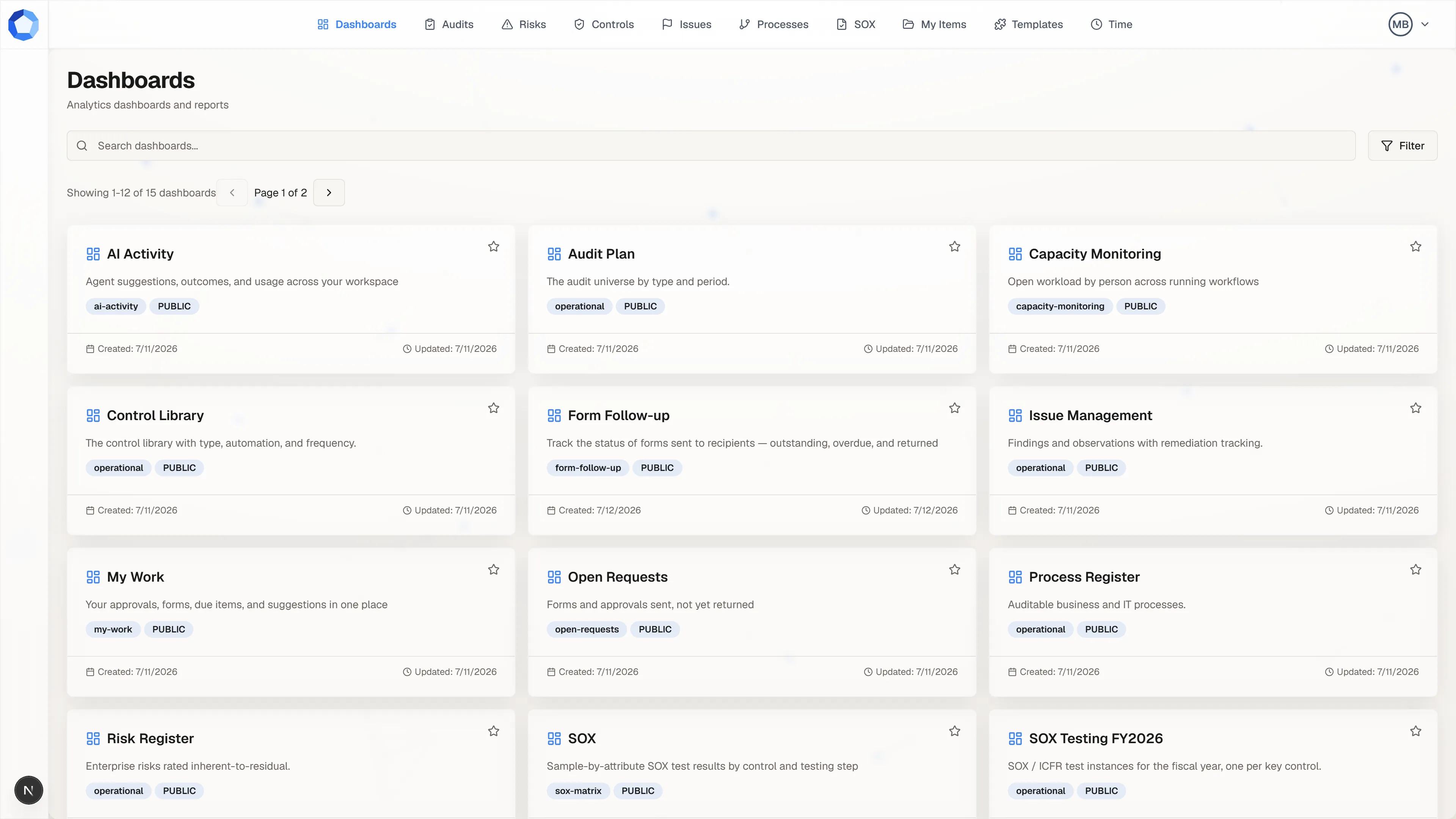
| Entry | What it opens |
|---|---|
| Dashboards | The dashboard gallery: search, filter, and favorite the boards your tenant publishes. See Using dashboards. |
| One entry per item type | A register of one record type, named for it: Audits, Risks, Controls, Issues, and whatever else your administrators configured. See Working with items. |
| My Items | The records you own or that were shared with you, in one queue. |
| Templates | The reusable workflow templates you can start a new workflow from. See Using templates. |
| Time | Time Keeping, where hours are logged against items a week at a time. See Tracking time. |
| Admin | Tenant configuration. Administrators only. See the Admin guide. |
| My Forms | Shown only to external collaborators, and it opens their forms inbox. See Responding to forms. |
When the row runs out of horizontal space, the labels fall away and the entries collapse to icons. Hover one to read its name again.
Your avatar menu
Section titled “Your avatar menu”The avatar at the right end of the navigation opens a short menu, headed by your name and the email address you signed in with.
| Entry | What it does |
|---|---|
| Settings | Your personal account settings: the display name colleagues see, and the language the interface renders in. |
| AI Agent Setup | Where you mint a personal access token so an AI assistant can work in your tenant as you. Tokens run for 30 days, are shown once at creation, and can be revoked from the same page. See Connect an agent. |
| Forms inbox | The forms assigned to you and waiting for an answer. |
| Sign Out | Ends your session and returns you to the sign-in screen. |
The forms inbox lives here rather than in the top navigation, so if you are hunting for a form you were sent, open your avatar rather than scanning the nav row. External collaborators are the exception: they get a My Forms entry in the navigation itself, because the inbox is most of what they use.
The Activity Hub
Section titled “The Activity Hub”The rail down the left of every page is the Activity Hub, where changes proposed by AI agents wait for a person to decide. It is a review queue rather than a chat: each card names the action and the record it targets, carries the instruction that produced it, and a footer counts the queue by state.
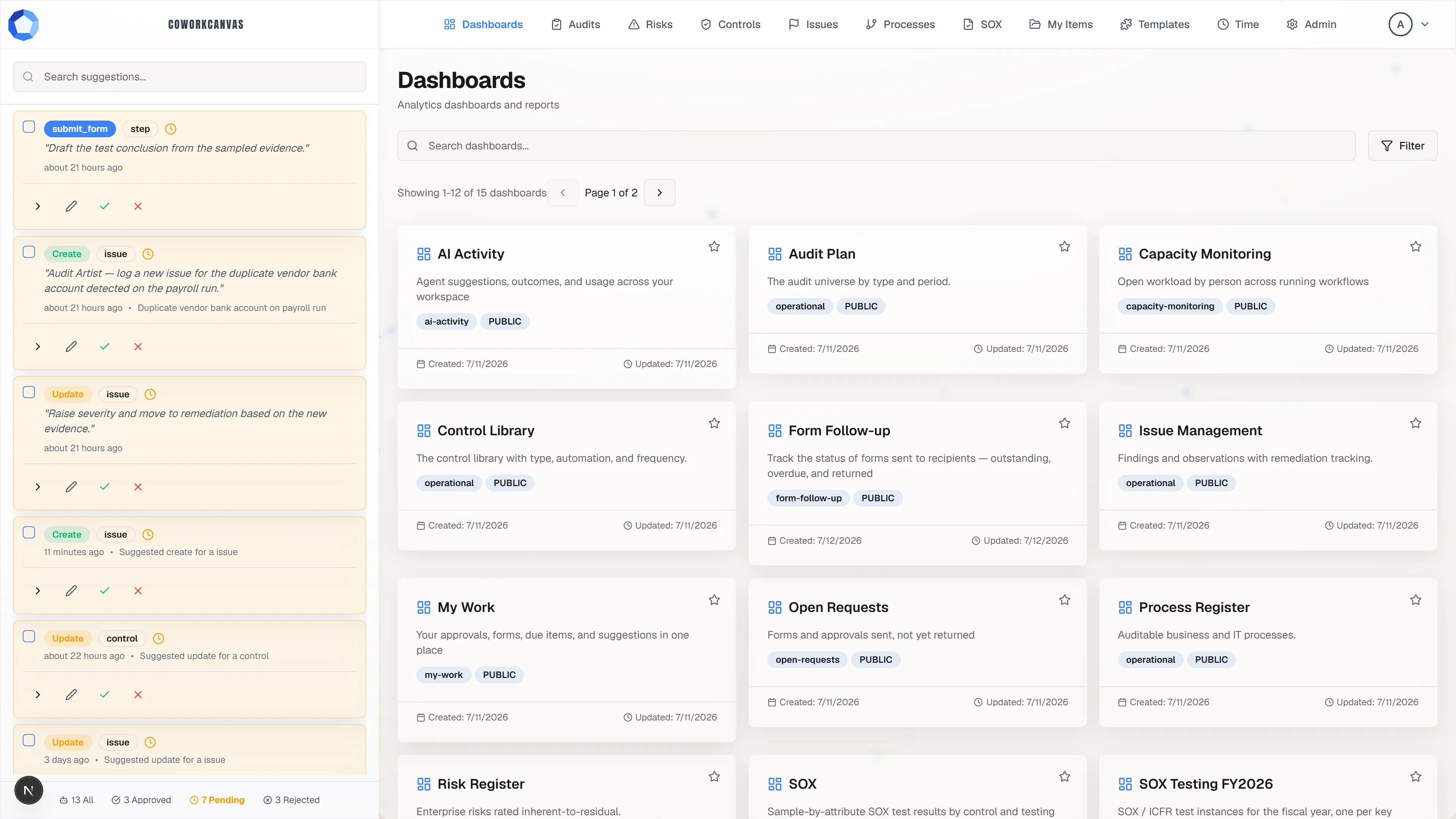
The round logo button at the top of the rail collapses it to a narrow strip when you want the width back, and clicking that strip anywhere brings it back. Drag the rail’s inner edge to resize it, or nudge that edge with the arrow keys. On a narrow screen the rail stops taking space from the page altogether and opens as a drawer over it instead.
Nothing in the rail has touched your data yet. Reviewing suggestions is the procedure for working through it.
Where sign-in lands you
Section titled “Where sign-in lands you”Signing in does not drop everyone in the same place. Internal users land on Dashboards. External collaborators land on their forms inbox when they have a form waiting, and on My Items when they do not, because item-level grants are the only records they can reach.
Wherever you land, the frame is the same, so the rest of these guides read the same way from either starting point.
When a page says Access Denied
Section titled “When a page says Access Denied”Opening a page you have not been granted gives you an Access Denied screen naming the page, with buttons back to your home page and to wherever you came from. It is a permission result, not a fault: someone has to grant you that page before it will open.
Ask a tenant administrator for the specific page by name, since page access is granted one page at a time. Troubleshooting covers the neighboring cases, including records that are missing from a page you can already open.
License notices
Section titled “License notices”On a self-hosted installation, administrators may see a notice at the top of the app about the state of the organization’s license. It warns and never blocks: work continues while a renewal is sorted out. Nobody other than an administrator sees it, and hosted tenants never do. On-premises deployment covers how licensing works there.
Where to go next
Section titled “Where to go next”- Working with items: the records behind every register page.
- Reviewing suggestions: what to do with the rail once it has cards in it.
- Permissions: why your navigation looks the way it does.
- Using AssureSwarm: every task guide in this section.